
Documentation
Quick reference for installing, configuring, and using CustosEye.
Install / Run
Option 1: Windows Installer (Recommended)
For end users who want a standard Windows installation:
- Windows 10 or 11 (64-bit)
- Includes Start Menu shortcuts and uninstaller
- Approx. 50MB disk space
- Download the installer from the Downloads page
- Run
CustosEye-Setup.exeand follow the installation wizard - Launch CustosEye from the Start Menu or desktop shortcut
- The dashboard opens automatically in a windowed application (if available) or in your browser at
http://127.0.0.1:8765/ - Create your first account (becomes an admin account) and optionally enable 2FA
Option 2: Portable Executable
For users who prefer a portable application without installation:
- Windows 10 or 11 (64-bit)
- No installation required, extract and run
- Approx. 50MB disk space
- Download the portable ZIP bundle from the GitHub releases page
- Extract the ZIP file to a folder of your choice
- Run
CustosEye.exe - The dashboard opens automatically in a windowed application (if available) or in your browser at
http://127.0.0.1:8765/ - Create your first account (becomes an admin account) and optionally enable 2FA
Option 3: Python Development Setup
For developers who want to run from source:
- Python 3.11 (specifically 3.11.9 is tested)
- Windows 10 or 11
- Create and activate a virtual environment:
python -m venv .venv .venv\Scripts\activate - Install dependencies:
python -m pip install -U pip python -m pip install -r requirements.txt - Generate environment file with secrets:
python setup_env.py - Run CustosEye:
python -m app.consoleThe dashboard will open automatically in a windowed application (if pywebview is available) or in your browser. Press
Ctrl+Cin the terminal to shut down. - Optional command-line flags:
python -m app.console --no-open    # Don't open dashboard automatically
python -m app.console --tray       # Run with system tray icon
python -m app.console --browser   # Open dashboard in browser instead of windowed application
Note: By default, CustosEye opens the dashboard in a windowed application (if pywebview is available). Use
--browserto open it in your default browser instead. PressCtrl+Cin the terminal to shut down the application.
Configuration Files
All configuration lives in the data/ directory.
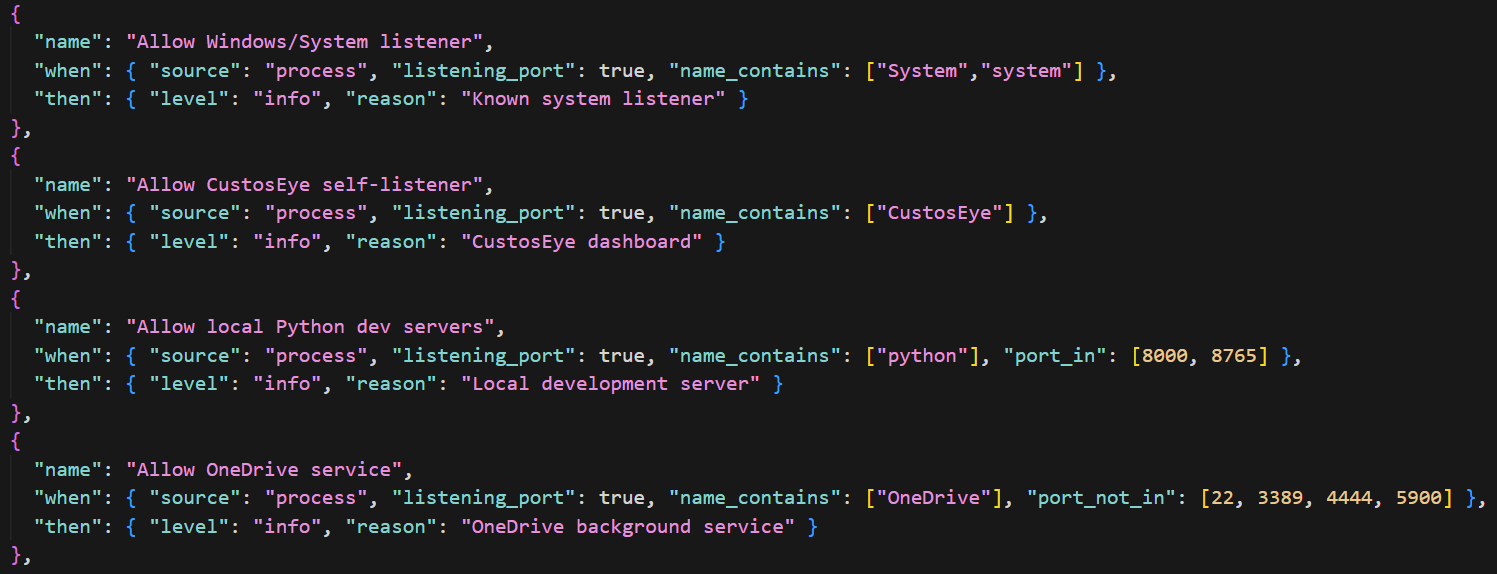
These JSON files control how CustosEye behaves:
Configuration Files
| File | Purpose |
|---|---|
rules.json |
Detection rules that assign severity levels (Info, Warning, Critical) to events. Rules hot-reload automatically when edited. |
csc_weights.json |
Trust scoring weights and thresholds for the CSC v2 engine. Controls how different signals contribute to trust scores. |
integrity_targets.json |
Files being monitored for changes. Managed through the Integrity tab in the dashboard. |
trust_db.json |
Local prevalence database (auto-generated). Tracks how often processes are seen on your machine for trust scoring. |
name_trust.json |
Fast-path trust verdicts for known process names. Provides quick trust decisions for common processes. |
self_suppress.json |
Filters to hide CustosEye's own processes from the event feed. |
Configuration directory: data/
Dashboard port: 8765 (hardcoded (can be changed), serves only on 127.0.0.1)
Using the Dashboard
Live Events Tab
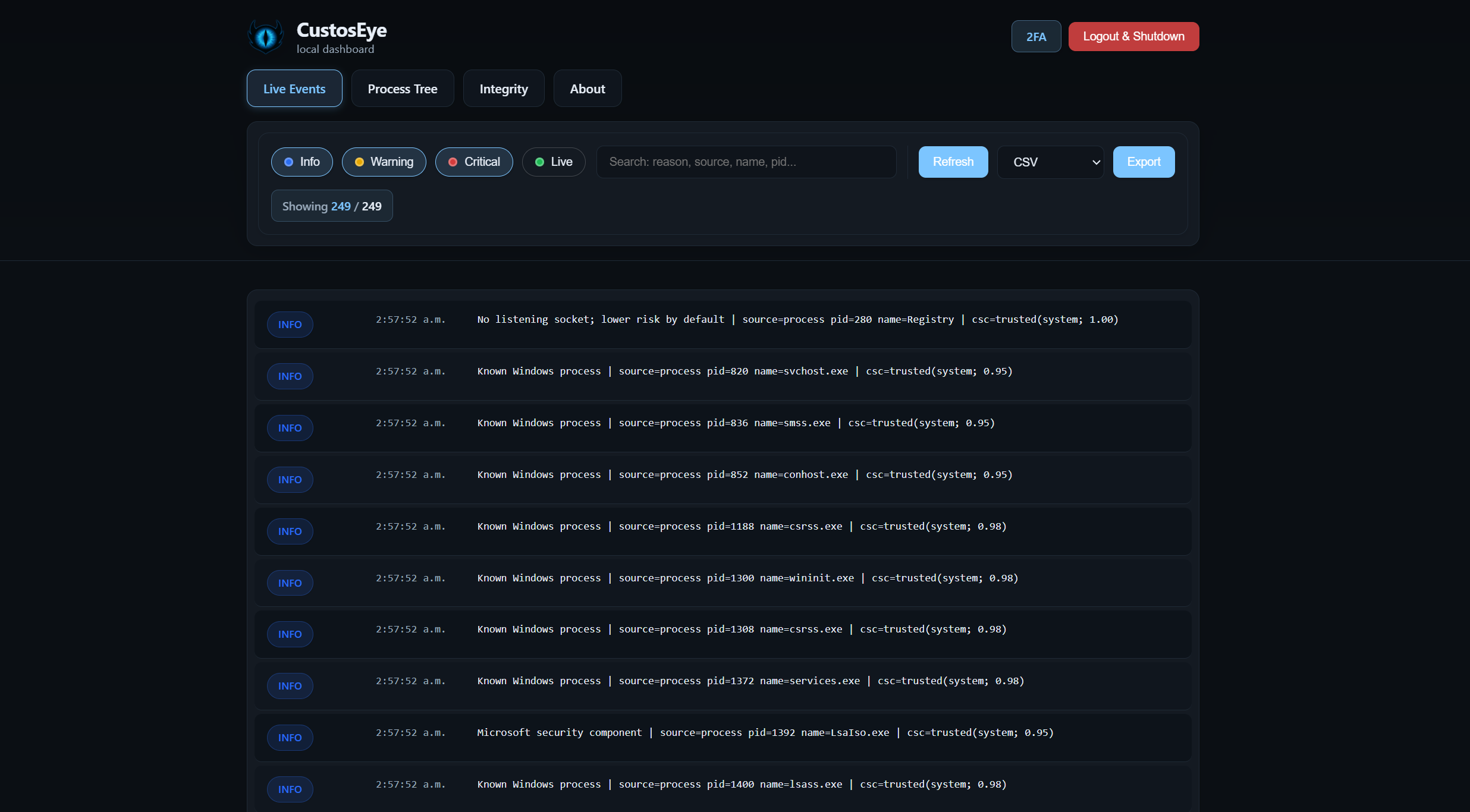
Real-time stream of all security events. Features include:
- Filter by level: Info, Warning, Critical
- Search by process name or path
- Pause/resume the feed
- Export to CSV, JSON, JSONL, or XLSX
Events are deduplicated automatically to reduce noise while preserving important state changes.
Process Tree Tab
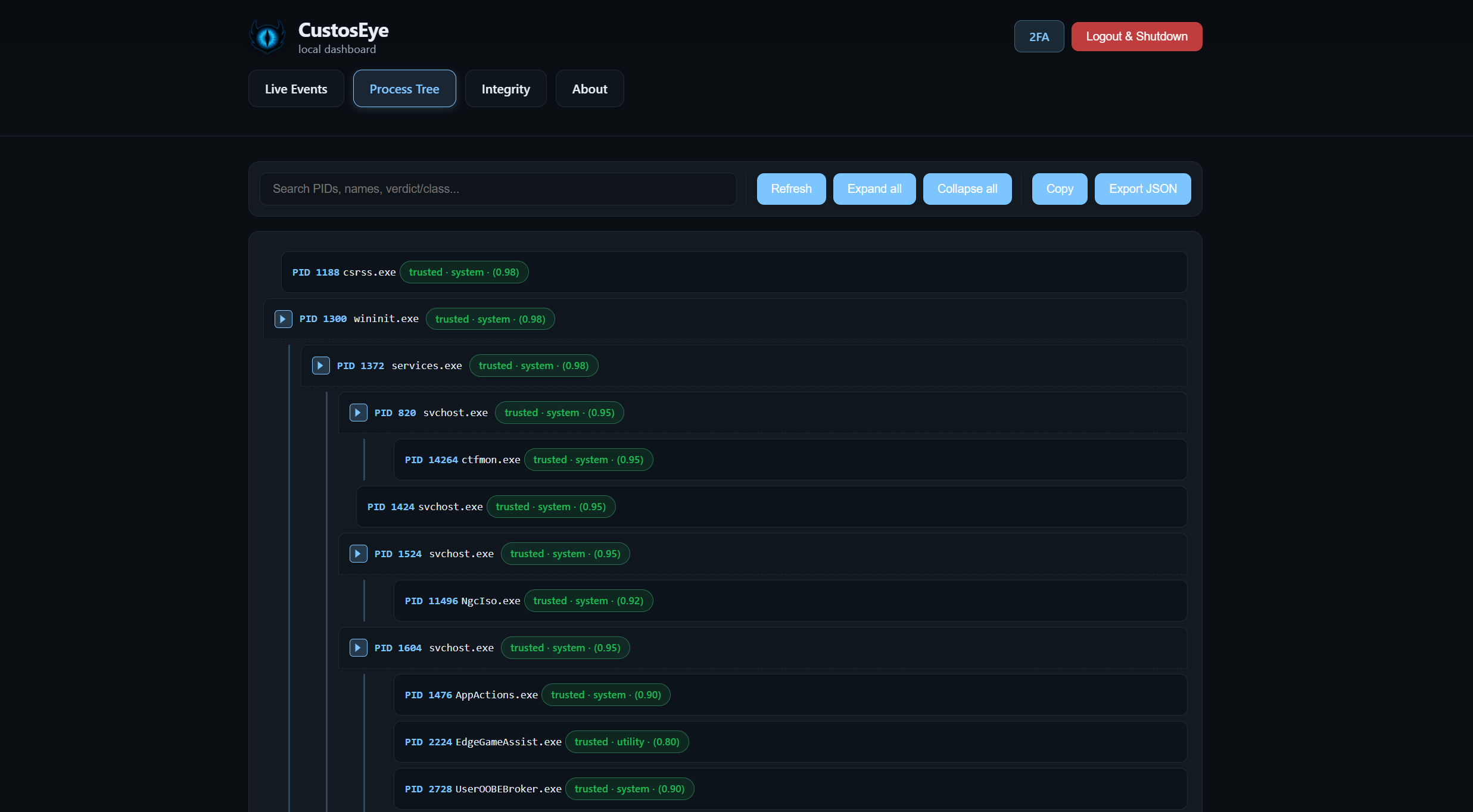
Hierarchical view of all running processes showing parent-child relationships. Each process displays:
- Trust verdict: trusted, caution, suspicious, malicious, or unknown
- Process class: system, service, dev_tool, game, utility, etc.
- Parent-child relationships in a tree structure
- Search and expand/collapse nodes
Trust scores are computed by the CSC v2 engine based on code signing, path context, network behavior, and local prevalence.
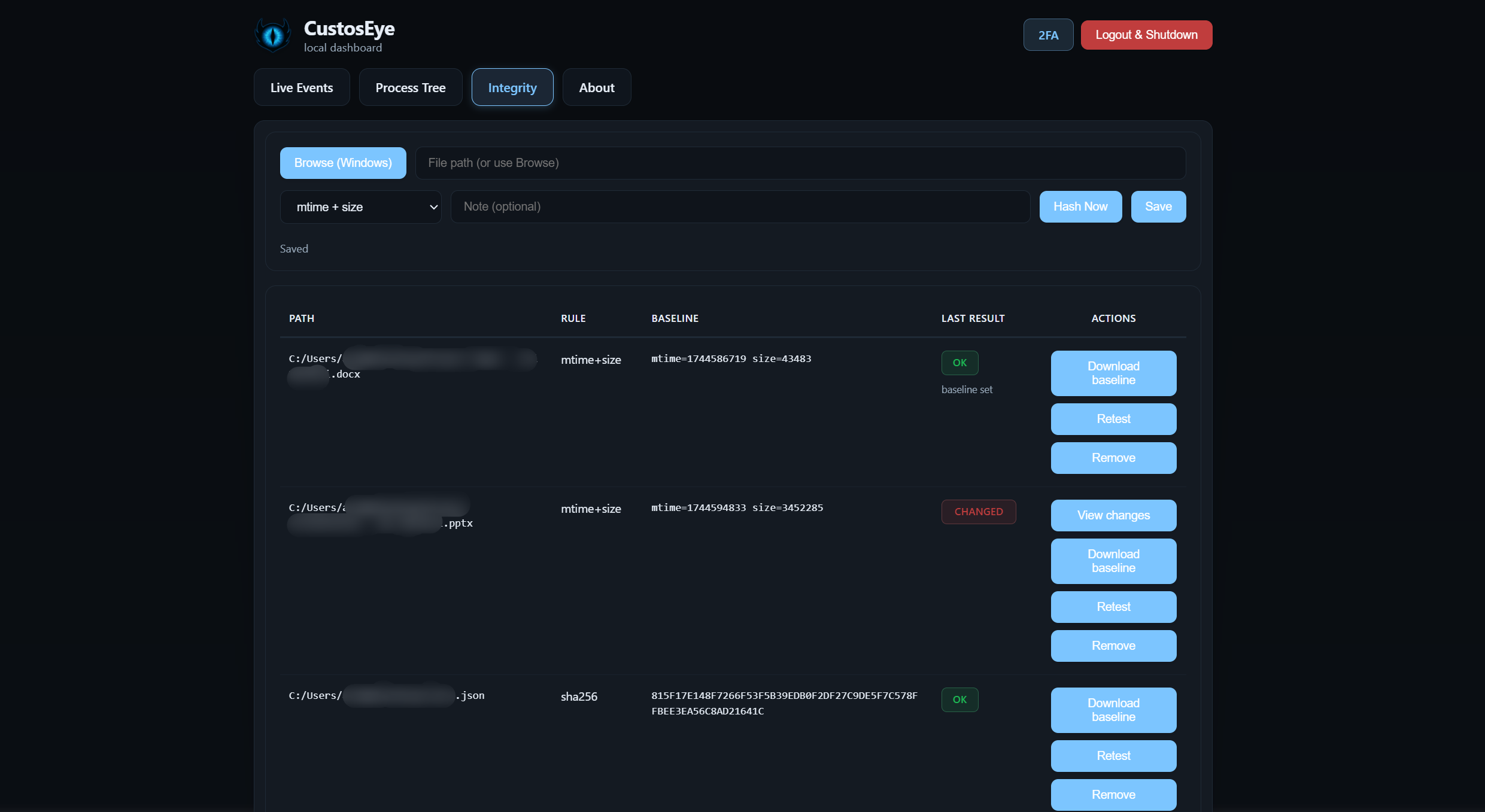
Integrity Tab
Manage files you want to monitor for changes. Features include:
- Add files with SHA-256 hashing (exact change detection) or mtime+size (lighter monitoring)
- View diffs when changes are detected
- Diff viewer works on text files, Office documents, and PDFs
- All analysis happens locally, no file uploads
Files are checked every split second. Baseline snapshots are stored locally and auto-pruned to stay under size limits.
About Tab
View version information, build details, buffer size, and runtime statistics.